For parents
Link your account to your student's and follow the college process without running it. You get a read-only view of their profile and progress, and you handle the subscription. Everything your student builds stays theirs.
Your dashboard
One dashboard for every student you link
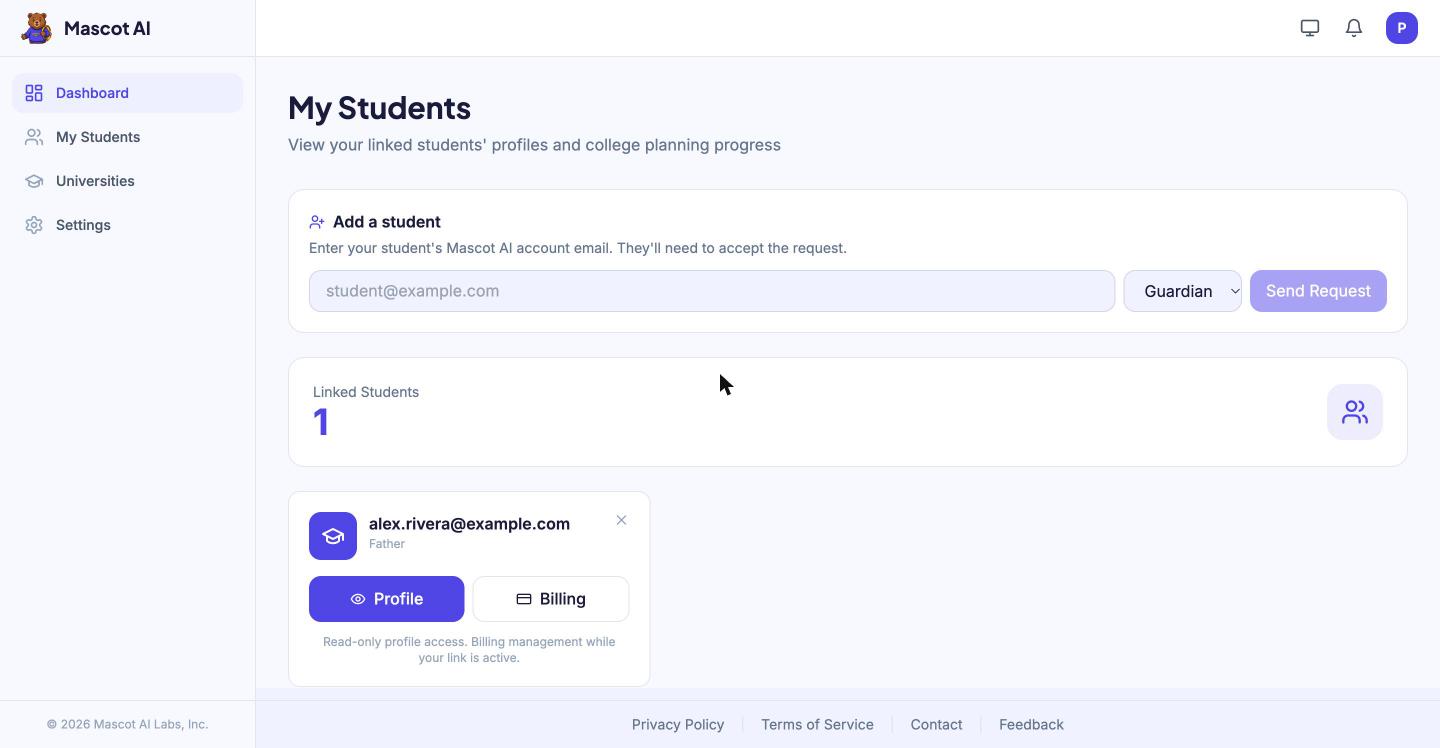
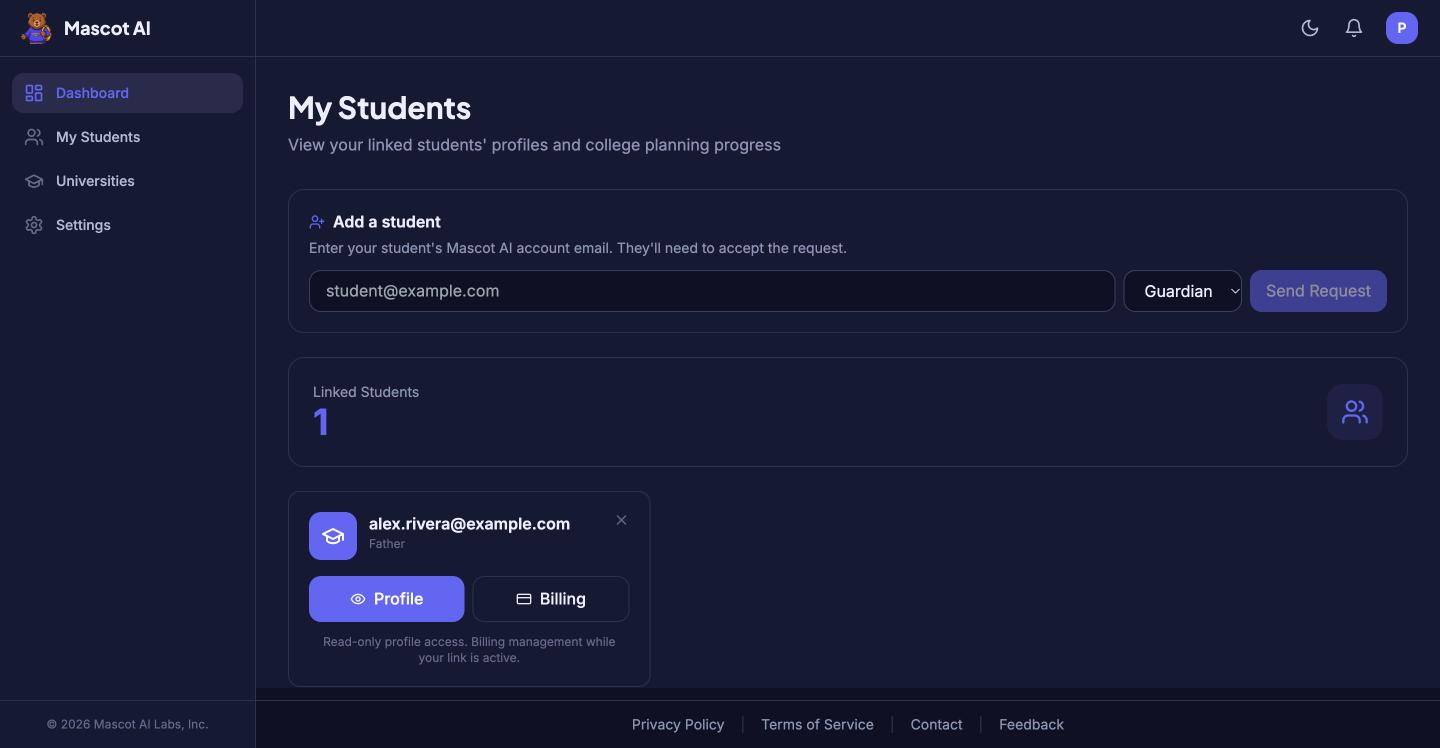
Each student you link to shows up with their college planning status. Add a student by email, accept the ones who invite you, and open any of them to see where things stand.
- Link by email, or accept a request from your student
- A card per student, with profile and billing one click away
- Link and unlink at any time, from either side
Read-only access
Their profile and progress, read-only
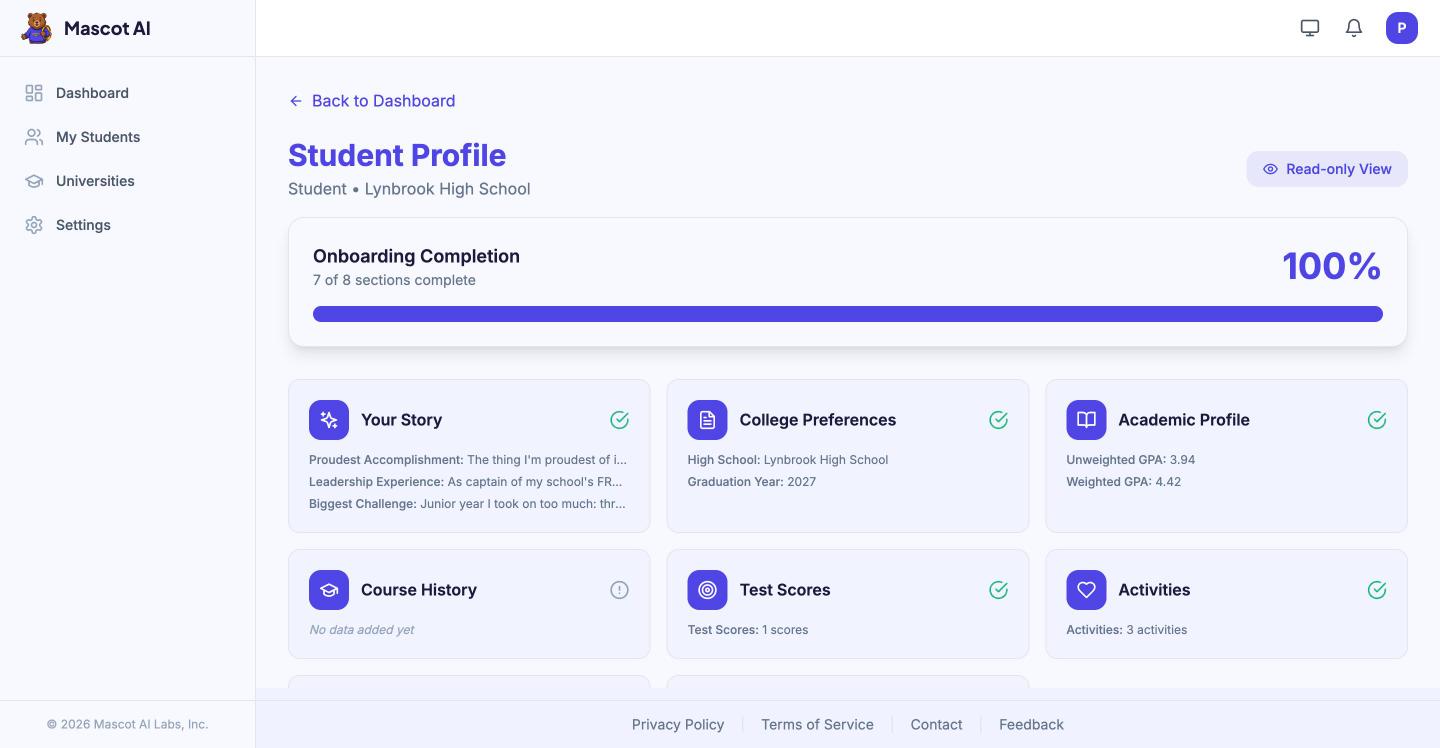
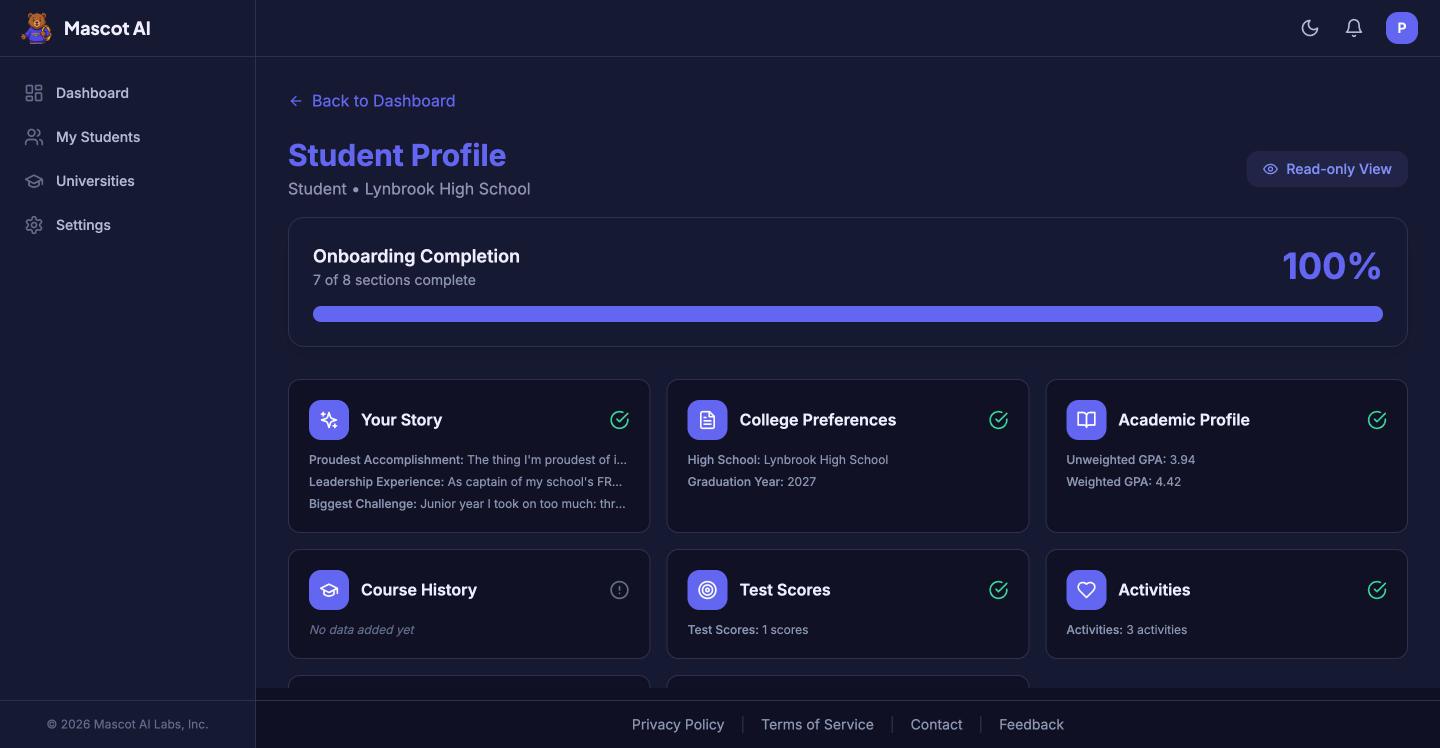
Open a student to see the same profile they see: academics, test scores, activities, honors, and the story they're building with Mascot. An onboarding score and a breakdown by section show what's done and what's still missing. You can look but you can't edit.
- Academics, testing, activities, and honors in one view
- Onboarding completion and which sections are incomplete
- University matches when your student shares them
Billing
Take the subscription off your student's plate
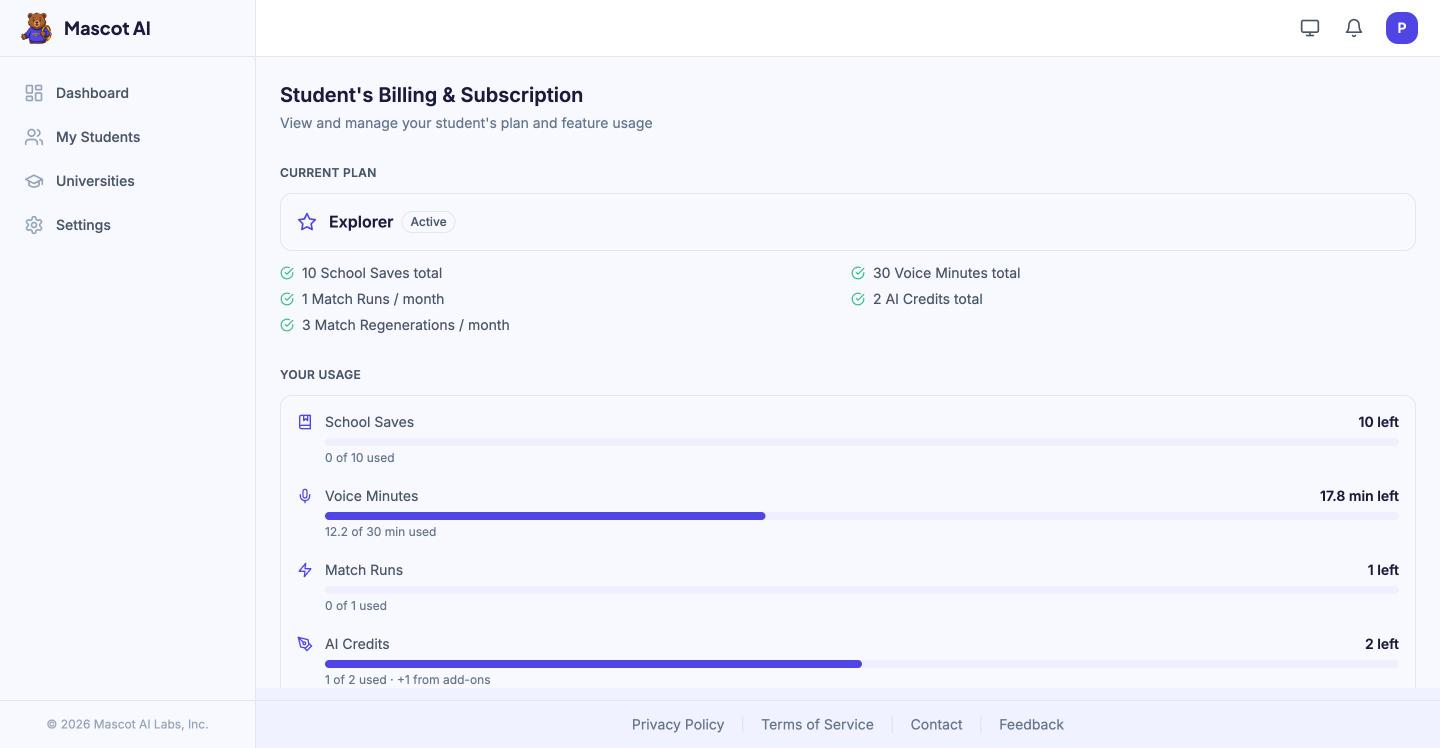
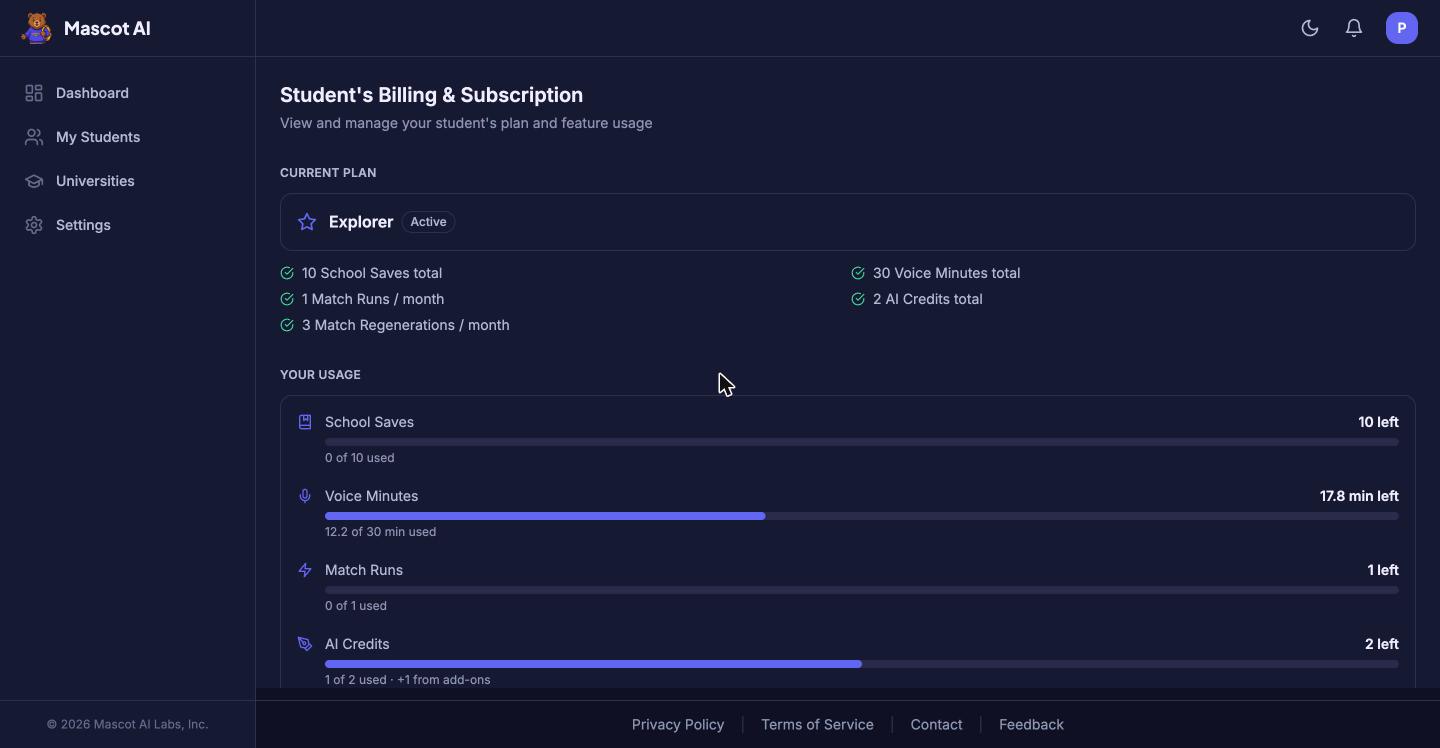
While your link is active you manage your student's plan: check the current tier and usage, change plans, and buy add-ons. The student can reclaim billing whenever they want.
- Current plan and usage for the period
- Change plans and buy add-ons for your student
- Student can take billing back at any time
How linking works
- 1
Your student makes their account
Parent access always starts from the student. They join Mascot AI and set up their profile first.
- 2
Link the two accounts
Send a request from your dashboard using your student's account email, or have them invite you from their settings.
- 3
They accept
Once your student accepts, you get a read-only view of their profile and progress, plus billing management. Either of you can unlink at any time.
Parents are always read-only. You can view what your student shares and manage the subscription. You cannot create, edit, or delete their profile, essays, or matches.
Frequently asked questions
- What can I see as a parent?
- A read-only view of your linked student's profile and progress, plus billing management. You cannot create, edit, or delete your student's work.
- How do I link to my student?
- Your student makes their account first. Then send a request from your dashboard using their account email, or have them invite you from their settings. They accept, and you are linked.
- Can we unlink later?
- Yes. Either of you can unlink at any time.
- Can I pay for my student's plan?
- Yes. Parents manage the subscription and billing from their own account.
- How does Mascot compare with a private college counselor?
- Mascot covers the core work of list building, essay feedback, and planning at a fraction of the cost. See the full comparison on our compare page.

Get your student started
Create an account, then link your student once they're in.